01
Plan Actions
What is planned?
View all planned Actions in the Calendar. Keep them independent or link them with dependencies. Review their Action Cards, adjust the schedule, and copy an Action or sequence to another date.
Explore PlanFOR TRUCKING OWNERS & DISPATCHERS
See your planned Actions in the Calendar. Follow your trucks and match recorded activity to those Actions. Compare the results, then use them to plan your next day.
14 days free at every capacity Google Play billing
Trial eligibility and regional pricing are shown in the app.Plan and Track: actual app screenshots. Analyze: labeled illustration awaiting a release capture. Select any screen to enlarge.
FIVE QUICK TOURS
Choose Lists, Plan, Track, Analyze or Admin. Watch the app with English narration and optional captions.
Explore all 15 detailed tutorials
Ready when you are. Select Play to watch.
QUICK TOUR 01 / 05
Create the working records used throughout the app, from Truck details and reminders to Sites and their boundaries.
Continue with a detailed tutorial whenever you want to follow each step in full.
PLAN · TRACK · ANALYZE
Driving from Site A to Site B, loading or unloading cargo, taking a break, and fueling a truck are all Actions. Each planned Action is represented by an Action Card on the Calendar.
What is planned?
View all planned Actions in the Calendar. Keep them independent or link them with dependencies. Review their Action Cards, adjust the schedule, and copy an Action or sequence to another date.
Explore PlanWhat actually happened?
See trucks live and explore four history views. Review routes, stops and site visits. In Tracked Actions, recognize Actions that have been matched to recorded activity.
Explore TrackHow did the results compare?
Compare planned and tracked values for your Actions. Group by customer, site, truck, driver or Action Template to review time, distance and calculated cost.
Explore AnalyzePLAN ACTIONS / THE CALENDAR ACTION CARD
One Action Card brings together its Action, locations, assignments, planned values and matched result. Tap a control or explanation to explore it.
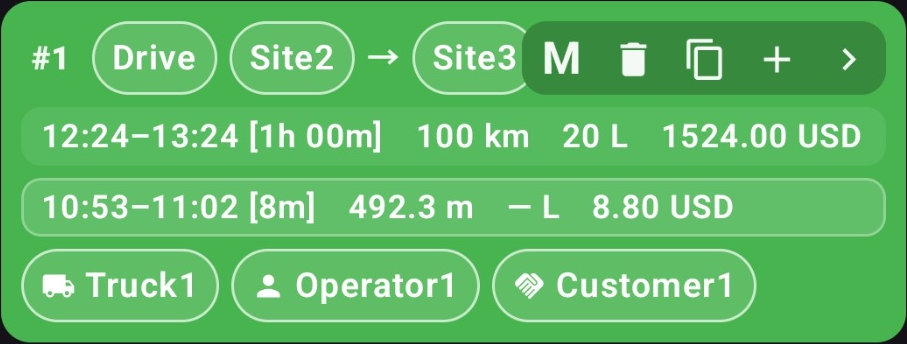
Select a button on the card to see its explanation. Hover or select an explanation to find its control. This demo does not change app data.
To duplicate the full chain, start at its first Action. The duplicate contains fresh planned Actions, without the previous tracked results.
Actual app screenshot with sample records. Values and controls are unchanged; only explanatory highlights are added. Not the Chiang Mai field test or a savings result.
View planned Actions by date. Each card identifies its Action and shows its planned values.
Choose the Action Template, locations, truck, driver and customer. Enter the template’s fields, estimates, rates and Guidance.
An Action can stand alone. Add a dependency when it should follow another Action, and keep the linked plan aligned when timing changes.
ACTION TEMPLATES & CUSTOM FIELDS
Start with Drive, Load, Unload, Fuel and Break. Create custom Action Templates with their own names, fields and colors. Add Custom Fields to built-in or custom templates; fill their values in Add/Edit Action.
DEPENDENT ACTIONS
Keep an Action independent or make its start relative to another Action’s finish. When you change an earlier planned time, linked Actions follow their timing relationships.
Drive→Load→Drive→Unload→Break
These two actual Calendar screenshots show the first Drive moving from 07:00 to 07:30. Load, the next Drive, and Unload each shift by 30 minutes; their planned durations stay the same.
| Action | Original | Revised |
|---|---|---|
| Drive | 07:00–08:20 | 07:30–08:50 |
| Load | 08:20–09:20 | 08:50–09:50 |
| Drive | 09:20–11:20 | 09:50–11:50 |
| Unload | 11:20–11:45 | 11:50–12:15 |
Original plan selected. Final Action finishes at 11:45.
Actual app screenshots with sample records. This website control only switches the displayed screenshot.
TRACK / LIVE VISIBILITY + FOUR HISTORY VIEWS
Start with live positions and available truck status. When you review a journey, choose the view that answers your question—not a different set of data to reconcile.
Live brings the tracked trucks onto one map. Choose a truck and time window to examine its history, with freshness and missing information kept visible.
Which sites did the truck visit?
Review the geographic history at your defined pickup, delivery and other sites, including the recorded visit intervals.
Use it to review a loading-site visit.
Where did it stop between those sites?
Review stop and movement classifications independently of predefined site geofences. An unexpected stop becomes something you can investigate.
Find a stop at a place you never added to Sites.
What happened around this exact moment?
Use up to three linked time sliders to move from a broad interval to finer detail, while following the selected time on the map.
Keep the journey in context while inspecting a short interval.
Which planned Action does this activity belong to?
See Actions with saved evidence matches in their tracked time and map context. Review the work using its own names—not only Stop and Move labels.
Recognize “Unload Cafe supplies at West Cafe.”
SiteTimeline and StopsMoves use separate algorithms. Advanced Sliders navigates time, while Tracked Actions shows your saved Action-to-evidence matches.
SiteTimeline and StopsMoves images are actual app captures. Advanced Sliders and Tracked Actions remain described here; final current screenshots are still needed.
TRACK / SITE BOUNDARIES
Choose a location, then draw a circle or place polygon corners around the actual yard, depot or loading area. A relevant boundary gives SiteTimeline useful geographic context. StopsMoves separately reviews stops beyond defined sites.
BUILT AROUND REAL OPERATIONS
Choose the Action Template and fill its fields, locations, assignments, timing, estimates, cost rates and Guidance—all in Add/Edit Action.
Copy an Action and its dependent sequence to a future date. Keep the connected plan, without carrying over the old tracked results.
Review comparable past Actions, available averages and sample counts before estimating the next plan.
Select one recorded interval for unloading and another for return collection. Each Action keeps its own matched result.
See saved matches as named Actions in Tracked Actions. Review intervals that still need to be associated with an Action.
Give scoped, time-limited, read-only access to selected Actions or truck tracking windows. Shared viewing uses the Android app.
PLAN / TRUCK REMINDERS
Set reminders for scheduled maintenance, insurance renewals and other truck-related dates. Choose a one-off date or a repeating schedule, and review what is due on the truck record.
Illustrative reminder schedules. Manage reminders from the Trucks list.
FUEL & OPERATING COST
Plan fuel stops, bring supported sensor readings and tank calibration into your review, and include fuel in calculations when valid fuel-use quantities are available.
Sensor support grows model by model. Send your sensor details so we can assess compatibility and arrange onboarding. A tank-level change, litres purchased and fuel consumed are not the same measurement.
Apply the Action’s saved rates
and relevant fixed additions.
This screen illustrates a Fuel Action—Fuel sensor setup is support-assisted beta.
CONTEXT-AWARE GUIDANCE
The right entrance. The loading procedure. The paperwork. Capture operational know-how in text, photos and video, then select relevant guidance for the customer, site, truck or Action.
Build the knowledge base over time—and reduce dependence on owners and dispatchers repeating the same explanation.
MORE THAN RAW GPS POINTS
GPS observations and available accelerometer readings work with noise filtering and stop/movement processing. Site history and selected Action evidence add the operational context.
Review defined-site visits and stops beyond those sites. Use Advanced Sliders to explore the time window, and Tracked Actions to see the Actions you matched.
Missing or stale information is not the same as inactivity. Review what the available evidence supports, rather than filling every gap with an assumption.
Plan the work. Track the activity. Analyze the result—with the collection and processing already connected.ADMIN / CONNECT THE PHYSICAL TRUCK TO THE WORKFLOW
Use two phones: the manager displays the invitation QR, and the tracked phone scans it. Then assign a Truck and complete the tracking setup.
Plan and review Actions, manage tracked phones, and Analyze the results.
Keep this phone with its assigned truck to record location and movement.
On the manager phone, open Admin → Set New Phone and keep the invitation QR visible. On the tracked phone, install and open PlanTrackAnalyze.
On the tracked phone, tap Scan invitation, then tap it again in Connect this Tracked Phone. Aim its camera at the manager’s QR. Compare the QR check on both phones, then tap Pair phone to confirm.
On the manager’s new Phone Card, choose the Truck this physical phone will track. Keep the tracked phone with that Truck so its recorded activity has the correct assignment.
With available tracked-phone capacity, turn Tracking on for the Phone Card. Complete the agreement and permissions on the tracked phone, then check its running state and fresh status on the manager. Choose capacity in Admin through Google Play.
Pairing connects the phone. Tracking starts only after its Phone Card is active and the tracked phone’s agreement and permissions are complete.
THE PHONE CARD
Use the Phone Card to select a truck, turn Tracking on or off, and review reported battery, connection and last-seen information. Connection QR reconnects the same physical phone when needed.
In the app, Connection QR reconnects this same physical phone. This illustration contains no pairing invitation.
Example: CM-01 is assigned; Tracking uses 1 place from a capacity of 5.
Interactive Phone Card illustration with sample values. These controls do not connect a device or change a subscription.
Turning Tracking off frees that phone’s place in your purchased capacity. It does not cancel or reduce the subscription. Complete the phone’s consent and permissions, and check that data are arriving.
STRAIGHTFORWARD SUBSCRIPTION
Plan, Track and Analyze your Actions. Choose the tracked-phone capacity your fleet needs.
Choose capacity for the phones that collect your trucks’ tracking data—typically one tracked phone per truck. Capacity is a subscription allowance, not a charge for minutes of use.
Manage your payment method and subscription in Google Play. We help with the app and your setup.
14-day free trial at every capacity. Google Play shows your eligibility and exact offer.
$250 USD / month
Google Play applies regional pricing. See the exact localized price, currency and payment terms in the app’s Google billing section and Google Play checkout before subscribing.
Start your 14-day free trialAfter an eligible trial, the subscription renews at the price and billing period shown in Google Play unless canceled. Cancel in Google Play before the trial ends to avoid the first subscription charge.
QUESTIONS, ANSWERED
A little context before your first run.
An Action: a defined Action with its own context and plan. Save evidence matches to add the tracked result. Review it on the calendar, in Tracked Actions history and among the underlying records in Analyze.
SiteTimeline reviews geographic site visits. StopsMoves classifies stops and movement beyond defined sites. Advanced Sliders provides linked time navigation at increasing detail. Tracked Actions presents the Actions with saved evidence matches.
No. Stop/movement history is not limited to Actions or saved sites. Planned Actions describe intended work; saved matches connect selected activity to it afterward. Whether an unexpected stop was authorized still needs operational context.
Admin creates a Phone Card for the paired physical phone. Assign a Truck record on that card, turn Tracking on within purchased capacity, complete local setup and check collection status. Pairing and truck assignment are distinct from starting collection.
The toggle allocates one place from the capacity you purchased. Turning it off frees that place but does not itself cancel or reduce your subscription. Review capacity changes and exact terms in the app’s Google billing section.
Yes. Copy an Action with its downstream dependents to a selected future start. Start from the first Action to copy the entire sequence. New planned records do not inherit the previous tracked results.
Yes. Change the upstream planned Action. Configured timing links carry that change through dependent work. You initiate the change and review the result; this is not automatic delay detection.
Create reusable text, photos and video with context conditions. Select relevant knowledge for the customer, site, truck or Action. The library grows as you add and maintain it; it does not require re-entering the same instruction for every job.
Fuel monitoring is a support-assisted beta. Send your sensor model and available protocol to Support for assessment and installation guidance. A Fuel Action, a fuel purchase, a tank reading and consumed fuel are different records.
Google Play applies regional pricing. See the exact localized price, currency and payment terms in the app’s Google billing section and Google Play checkout before subscribing. Checkout and payment methods are handled through Google Play. Use Google Play for payment-method issues, subscription management and the refund request process. Refund eligibility follows Google Play’s policies; some cases may also require the app developer’s help.
Yes. Start with Drive, Load, Unload, Fuel and Break, or create your own Action Templates with their fields and colors. Add Custom Fields to built-in or custom templates; the corresponding dropdowns, text inputs and other field types appear in Add/Edit Action.
Yes. Define the site with a polygon, or use a circle when suitable. SiteTimeline uses that area to give recorded visits their site context. Location observations and their quality still determine what can be recorded.
Yes. Add one-off or recurring reminders to the truck record, and review due reminders in the Trucks list.
YOUR NEXT WORKING DAY
Bring your next working day through one connected workflow.
Android app · 14-day trial at every capacity · Eligibility applies